Select any passage in the editor and click the comment button to attach a note to it. The commented text gets a subtle underline, and your note appears as a card in the margin beside the passage it refers to — like scribbling on a printed draft.
On smaller screens your notes tuck into a tidy panel instead, so they never crowd the page. Edit or remove a note at any time; everything saves automatically.
How to use it
Select the passage you want to comment on, then click the 💬 button in the editor toolbar.
Type your note in the card that appears and click back into your document — the note saves automatically. The commented passage keeps a subtle underline so you can spot it while reading.
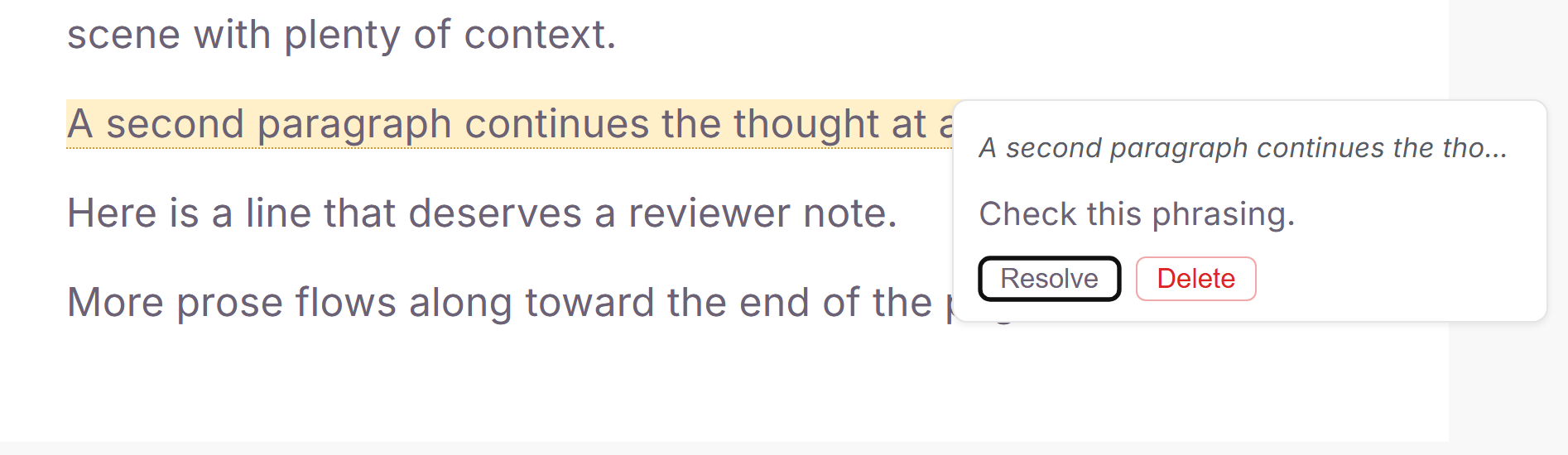
Your notes always sit beside the lines they refer to: in the margin on a wide window, or in a slim column along the right edge on smaller screens.
Click a note's text to edit it, use Resolve to dim a note you are done with, or Delete to remove it (you will be asked to confirm). Notes stay out of your exports unless you tick "Include annotations" when compiling.