Plot has joined characters and research as a planning sheet. A new plot outline starts with a premise — protagonist, want, need, antagonist, stakes, theme — and three empty acts ready for your beats. Choose a structure from the pill under the title — Three-act, Save the Cat, Hero's Journey, Five-act, Seven-point, Kishōtenketsu or Freytag — and the sheet offers to fill in that framework's beats for you, so you write what happens rather than remembering what comes next. Or leave it blank, or start free-form and write your plan as prose.
Every beat can be linked to the scene it is written in. The beat number shows the link, fills in once that scene has words, and a progress line at the top of the sheet tells you how many beats are drafted. Beats export with their numbers when you compile.
How to use it
In the binder, right-click and choose Add Plot (or New Plot from the binder's menu). Pick the beat sheet template to start from the sheet, or a blank document to write your plan as prose.
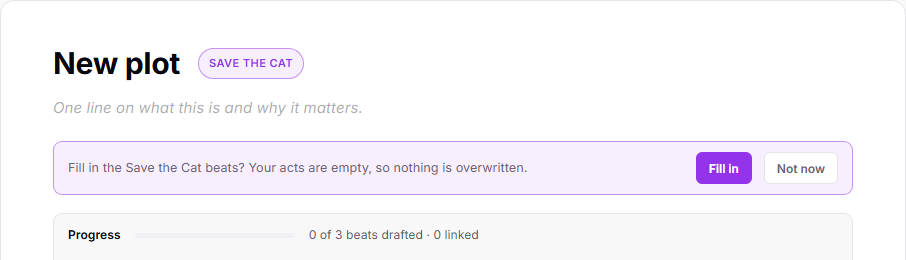
Click the Structure pill beside the title and pick a framework. A bar appears asking whether to fill in that structure's beats — click Fill in and the acts are laid out with every beat named, or Not now to keep them empty. The offer only appears while your acts are empty, so it can never overwrite beats you have written.
Fill in the Premise fields at the top, then work through the acts. Each row is a beat: a name on the left, what happens and what changes on the right. Use "Add beat" under any act for more, and the ✕ at the end of a row to remove it.
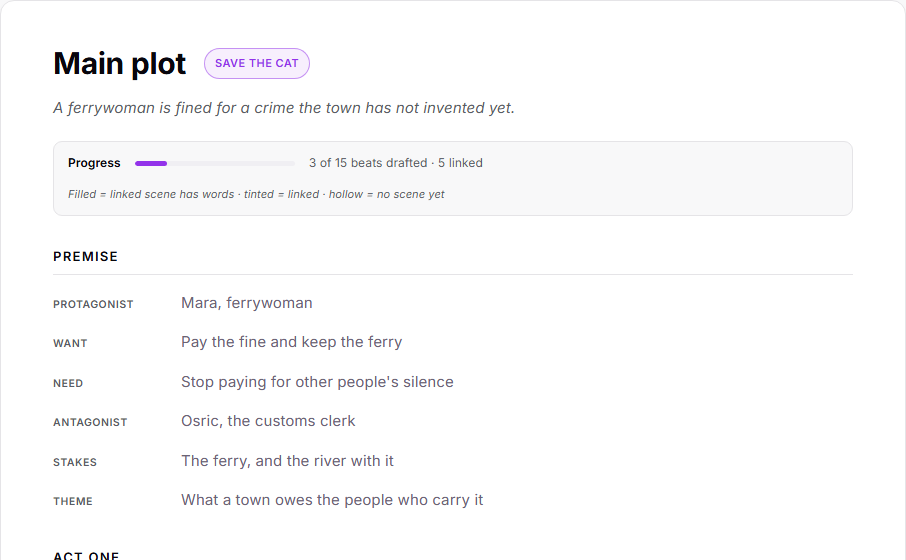
Click "Link scene" on a beat and pick the scene where it happens. The beat number turns solid as that scene gets words, and the line above the acts updates: "4 of 15 beats drafted".
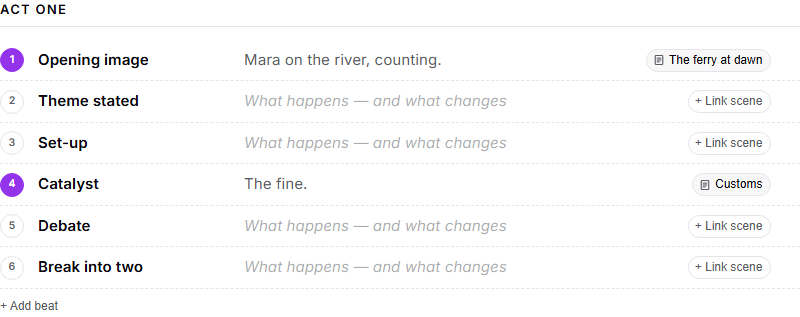
Click a linked beat's scene name to jump to it, or choose Unlink from the same menu to remove the link. Deleting the scene simply unlinks the beat; the beat itself is kept.