The Plot board shows your plot outlines as a grid — one row per thread, one column per chapter — with each beat as a card. Drag a card into a chapter to place it there, and link it to the scene it is written in to have it follow that scene. It is the same beats as your plot outline, seen from above, so a change in either place shows in the other.
Each thread has a colour, and you can add a new subplot thread straight from the board. Beats you have not placed yet wait in an Unplaced column at the left.
On a phone the board shows one chapter at a time, with tabs to move between them.
How to use it
Create at least one plot outline (right-click in the binder and choose Add Plot), then click the Plot button in the top bar — or, on a phone, choose Plot from the menu. Each plot outline becomes a row, and each of your chapters becomes a column.
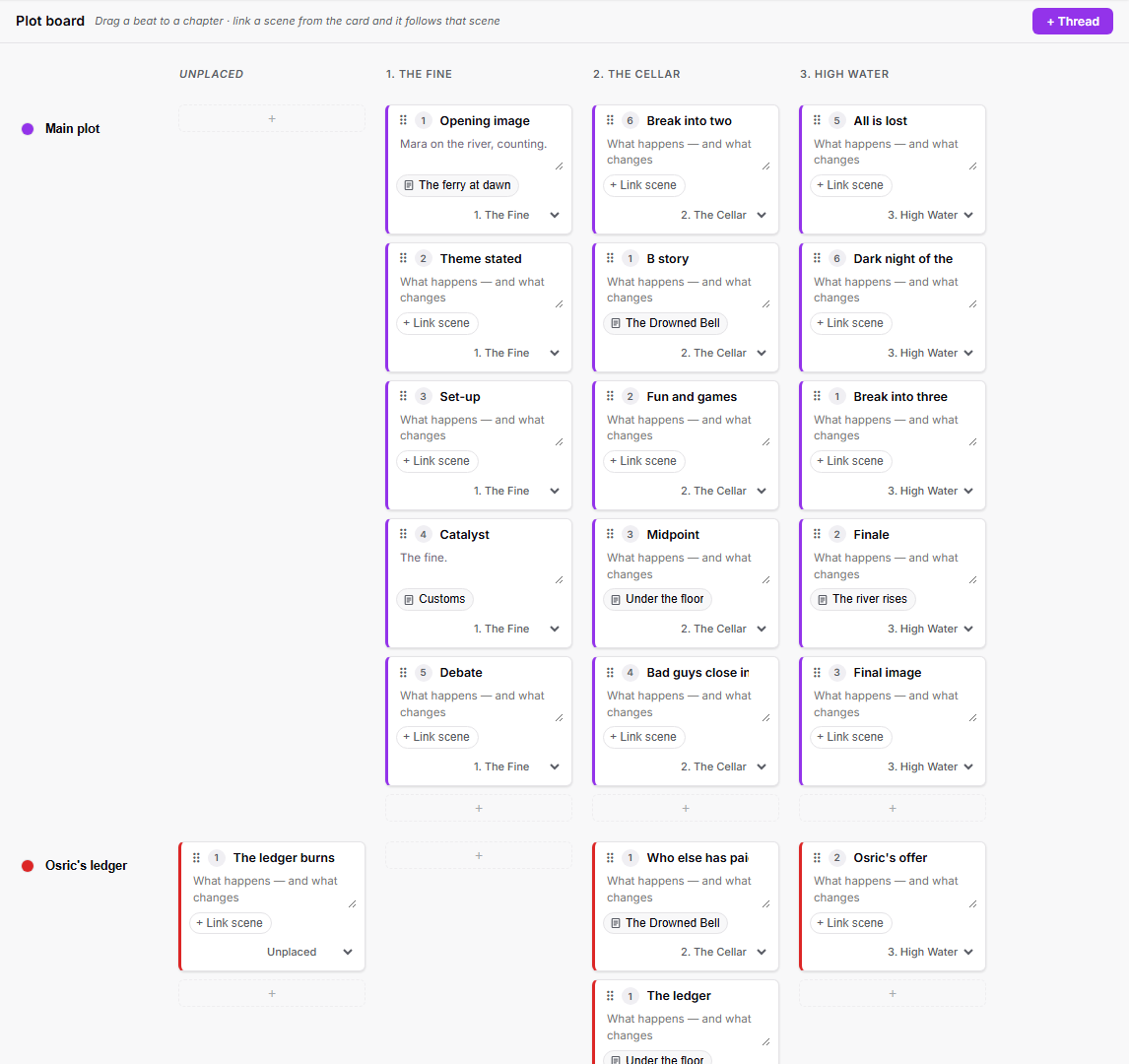
Drag a card by its handle into a chapter column, or use the chapter drop-down on the card if you would rather not drag. The beat is placed in that chapter and stays there when you come back.
Click "Link scene" on a card and pick the scene it is written in. The card moves to that scene's chapter and shows the scene's name; the same link appears on the plot outline, where the beat number turns solid once the scene has words in it.
Click the coloured dot at the start of a row to change that thread's colour. Click "+ Thread" to start a new subplot — it is created as a plot outline in your binder, ready for beats.
Click the "+" in any empty cell to add a beat directly into that chapter for that thread. Card titles and summaries are editable in place.