The new Outline view lays your manuscript out as a table — one row per chapter and scene, with its synopsis, point-of-view character, plot threads, status and word count side by side. Everything in it is editable in place, so you can rework the shape of a book without opening a single scene.
Chapters and folders fold up, and their word counts roll up with them, so you can see at a glance which act is thin. The Threads column is tied to your plot outlines: ticking a thread on a scene adds a beat for that scene to the plot, and unticking removes it. A filter at the top shows only the scenes on one thread.
On a phone the table becomes a stack of cards with the same fields.
How to use it
Open a project and click the Outline button in the top bar (on a phone, open the menu and choose Outline). The manuscript appears as a table on the left, with the total scene and word count in the header.
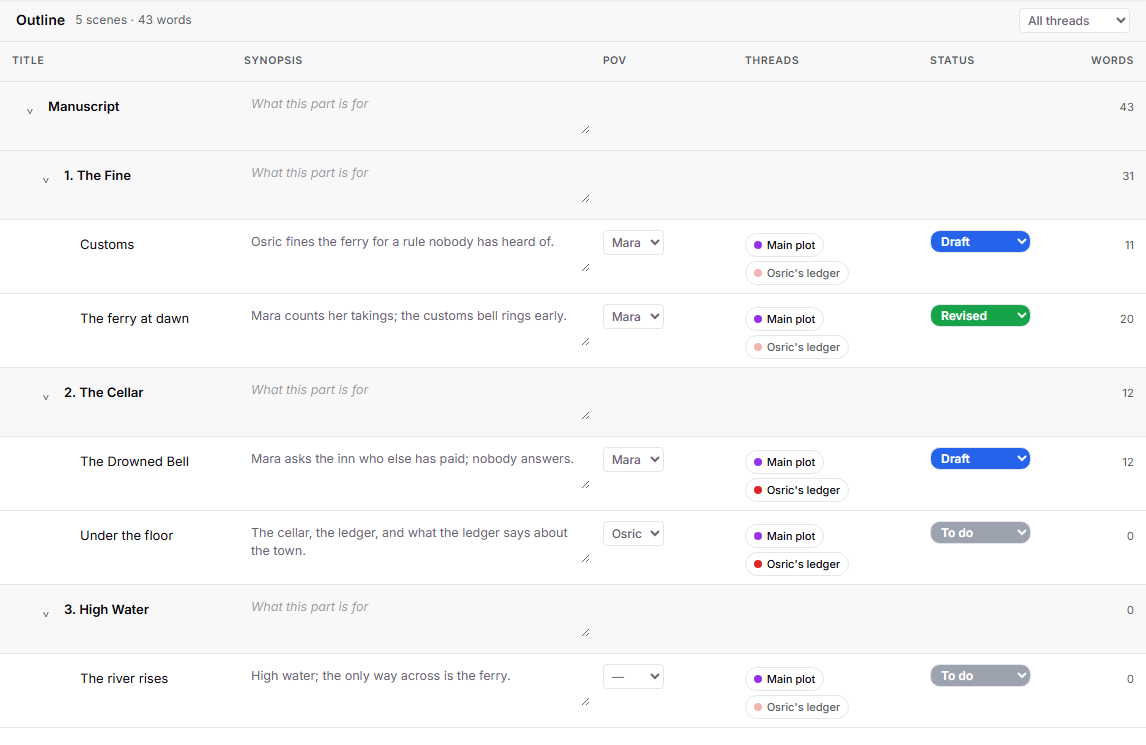
Click in any synopsis cell and type. It saves when you click away, and the same text shows on the scene's index card and in the corkboard.
Pick a point-of-view character from the POV column — the list is your character sheets — and a status from the Status column. Both are the same fields you set from the binder.
Click a thread chip on a scene to put that scene on a plot thread. The plot outline gains a beat linked to the scene; click the chip again to take it off. Use "All threads" in the header to filter the table down to one thread.
Click the small arrow beside a chapter to collapse it. Its word count now shows the total of everything inside.
Click any title to open that document — it opens in the right-hand pane if you are in split view, or replaces the outline otherwise.