Every beat in a plot outline can now say who is in it, where it happens and which research it draws on, right beside the scene it links to. Pick characters, settings and research notes from your own sheets, and the beat carries them wherever it shows up — on the outline, on the plot board, and in the Outline view.
It works in both directions. A character, setting or research sheet now shows an "In the story" line listing every beat that names it, so you can see at a glance where a character turns up, or whether a location you built ever gets used. Click a beat there to jump to the plot outline.
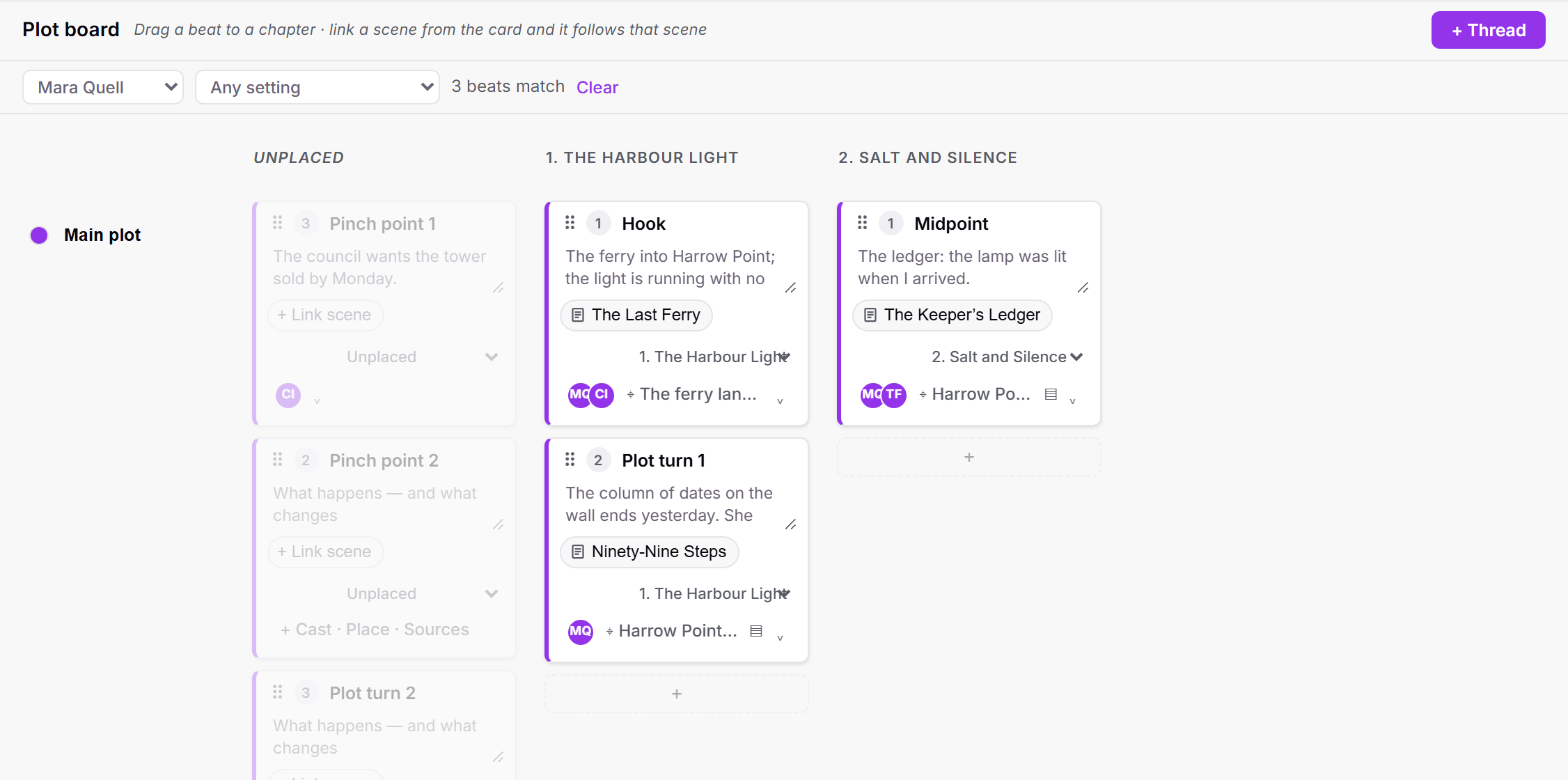
The plot board gets a filter: choose a character or a setting and every beat without them fades back, so "where is Mara in Act Two?" is one click. The Outline view adds Cast and Setting columns, worked out from the beats linked to each scene. And restoring a project from a backup now keeps all of these links, along with the beat-to-scene and relationship links it used to lose.
How to use it
Open a plot outline and look at any beat. Beside its scene link there is a small "+ Cast · Place · Sources" button. Click it to open the beat's panel: three lines, Cast, Place and Sources, each with an "+ Add" button.
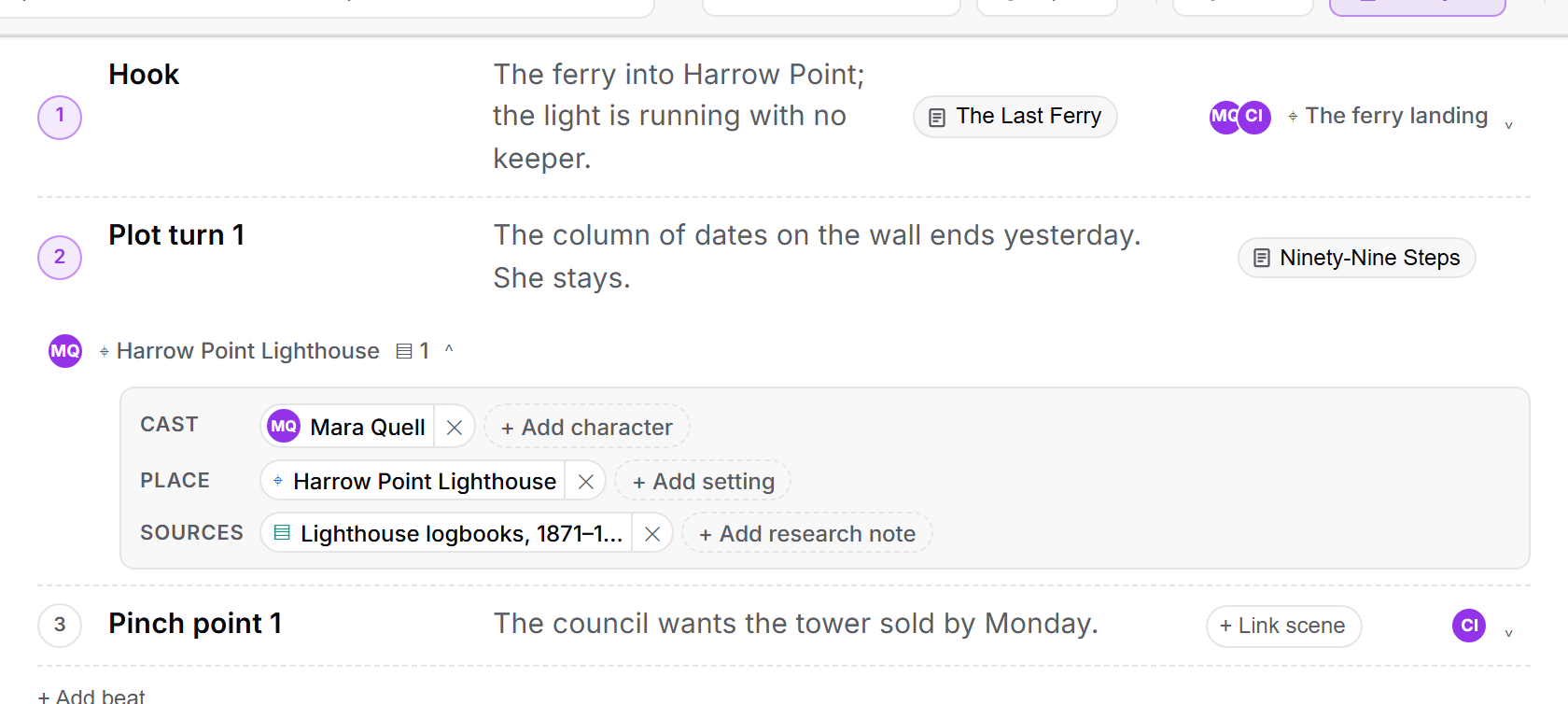
Click "+ Add character" and pick from your character sheets; the same for settings and research notes. Each pick becomes a chip. Click a chip to open that sheet, or its × to take it off the beat. Close the panel and the beat keeps a one-line summary: initials for the cast, the first place, and a count of sources.
Open the plot board. Each card carries the same summary, and the same panel opens from it. Use the "Any character" and "Any setting" menus above the board to filter: beats that do not match fade back, the header counts the ones that do, and Clear brings everything back. On a phone, the filters sit above the chapter tabs and the picker opens as a sheet from the bottom of the screen.
Open a character, setting or research sheet. Under its tagline, "In the story" lists every beat that names it, coloured by plot thread. Click one to open that plot outline.

Open the Outline view. The new Cast and Setting columns are filled in from the beats linked to each scene, so they update on their own as you link beats. They are read-only here; edit them on the beat.