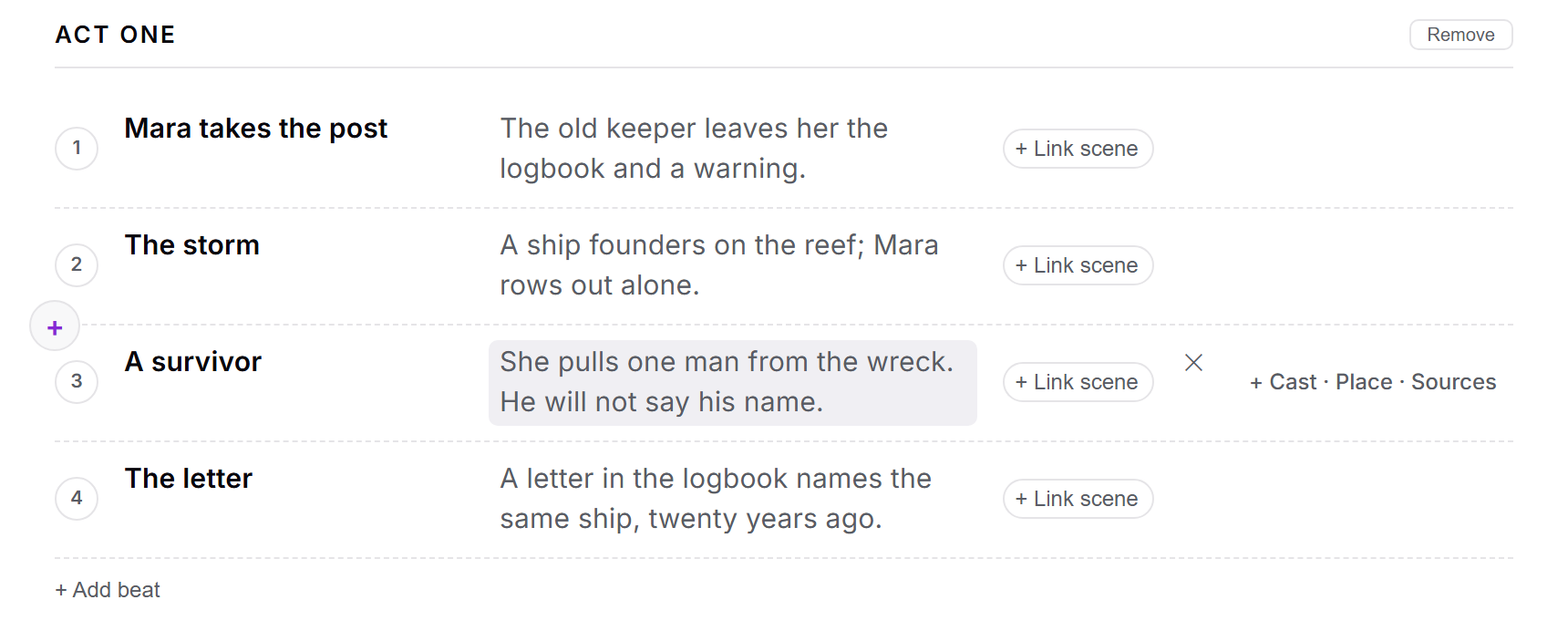
You no longer have to add a chapter or a beat at the end and then drag it into place. On the plot board, the + on a chapter heading adds a new chapter right after it. On a plot outline, the + on the line between two beats adds a beat in that spot.
If your chapters are numbered, like Chapter 4 or 4. The Ball, the new one is numbered to fit and the ones after it move up. The numbers now stay in order however you change your chapters: add, delete, restore or drag one in the binder and they are renumbered 1, 2, 3 to match. Chapters without a number, such as a prologue, are left as they are, and every renumbering can be undone.
How to use it
Open the Plot board from the top menu. Point at a chapter heading and a + appears at its right end; on a tablet it is always showing. Click it to add a chapter straight after that one. The + on Unplaced adds a chapter before your first.
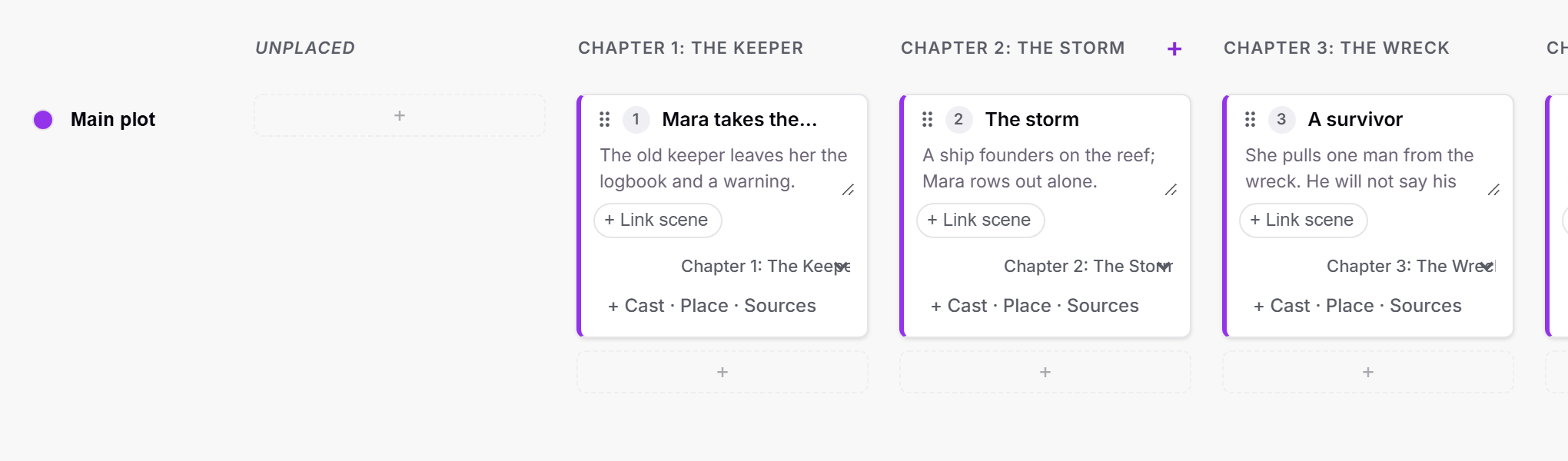
On a phone, the board shows one chapter at a time. Open the ⋯ menu and choose Plot, pick a chapter in the row of tabs, then choose + Chapter after this at the end of the row.
The new chapter appears in your binder next to its neighbour. If your chapters are numbered in one style, it takes the next number and the chapters after it are renumbered. A message says what changed; choose Undo there to take it all back.
Open a plot outline. Point between two beats and a small + appears on the line between them; on a touch screen it is always there, faintly. Click it to add an empty beat in that spot, ready to type in. The beats below are renumbered, and on the plot board the new beat sits in the same chapter as the beat above it.
From now on the numbers keep themselves in order. Delete, restore or drag a chapter in the binder and the numbered chapters are renumbered 1, 2, 3 in binder order. Chapters without a number, such as Prologue or Interlude, are skipped, and if your chapters mix numbering styles they are left alone. Each time, a message says how many were renumbered and offers Undo.