Find & Replace can now search only the document you are working in. Choose This document and a common word no longer buries your scene in a long list of results from the whole project.
Replace All follows the same choice, so with This document selected it changes that document and nothing else. The panel remembers which you picked until you close the tab.
How to use it
Open the document you want to search, then press Ctrl+H, or open the ⋯ menu at the end of the toolbar and choose Find & replace.
Next to Case sensitive and Whole word, choose This document instead of Whole project. If you are writing in split view, it searches the side you last clicked into.
Type what you are looking for and press Search. Only matches in your open document are listed, and the count above them says how many there are.
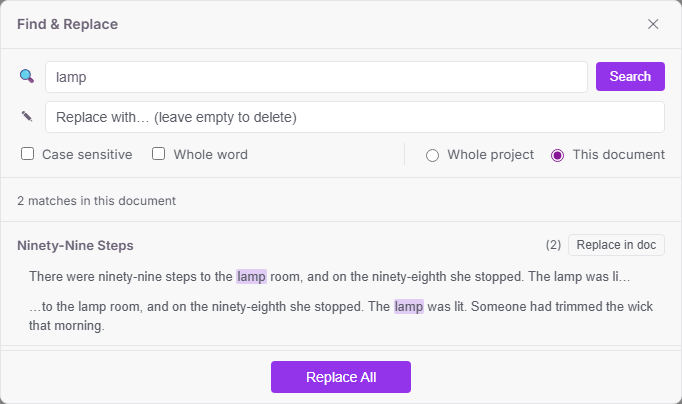
To change them, type the new text in Replace with and press Replace All. Only this document changes. Switch back to Whole project whenever you want to search everything again.