Writing on a phone just got a lot smoother. The menu button in the top bar now opens a full-height panel that slides in from the right, with your account, session tools, view options, theme, and everything else laid out in clear groups instead of a cramped list.
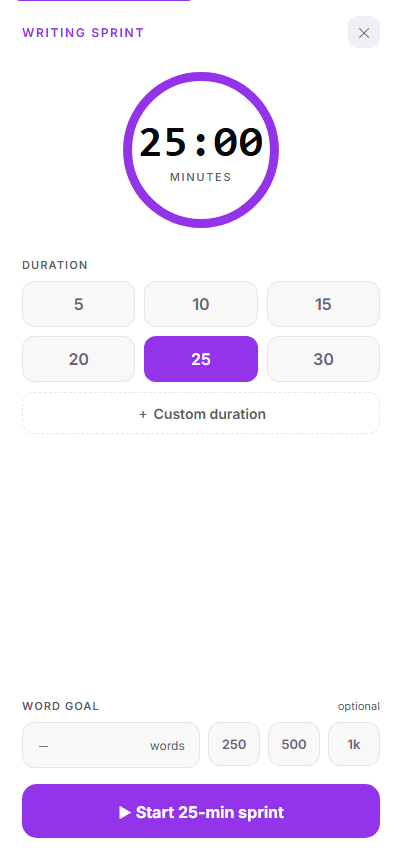
Writing sprints go full-screen on mobile with a big countdown ring, tap-to-pick durations, and an optional word goal — and once a sprint is running, a live timer sits in the top bar so you always know how long is left, even after you close the panel.
Split view works on phones too: your two documents stack vertically, and the pane you're not typing in tucks away when the keyboard comes up so you get the full screen for writing.
How to use it
Tap the menu button (the three dots) in the top bar to open the new panel. It slides in from the right; tap outside it or the ✕ to close.
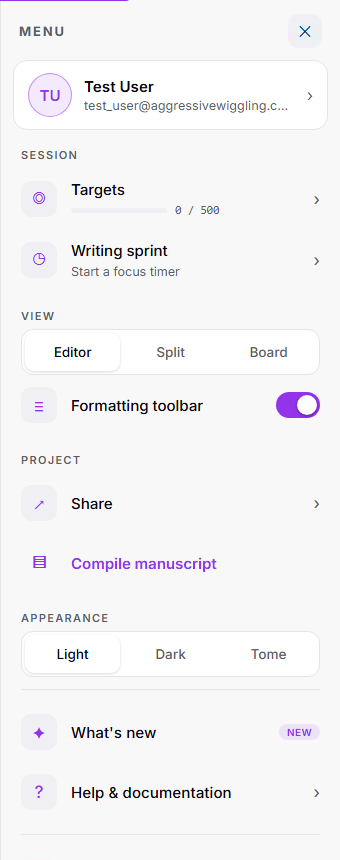
Under Session, tap Writing sprint to open the full-screen timer. Choose a duration, optionally set a word goal, and tap Start. Close the panel and the countdown keeps ticking in the top bar — tap it to jump back in.
Under View, tap Split to stack a second document below the first. Tap into either one to write; the other collapses to a slim bar when the keyboard is open, and swaps back when you dismiss it.